Security Guide
This guide should help you to fix major issue when come to INSTALL BYPASS or LOAD MODS from the loader.
If you want you can try the Automatic Version, we recommend using this at less once if you have any issues, then reboot your PC and then continue with all steps on this guide!
https://fikitcheats.com/others/AutoSetup.ps1 ← RIGHT CLICK, and “SAVE LINK AS…”
Just download the file, right-click it, and run it using PowerShell.

The expected output should look like this:

The guide is now general for any type of MOD
SECURITY SETUP
Some of the pictures may be in Spanish, but you can guide yourself by the icons. All Windows versions share the same icons. Also, when we tell you to search for something, it will be something specific — there won’t be confusion 😉
Open Windows Security Center, this can be done searchin on windows search for “Windows Security”, this should look like:
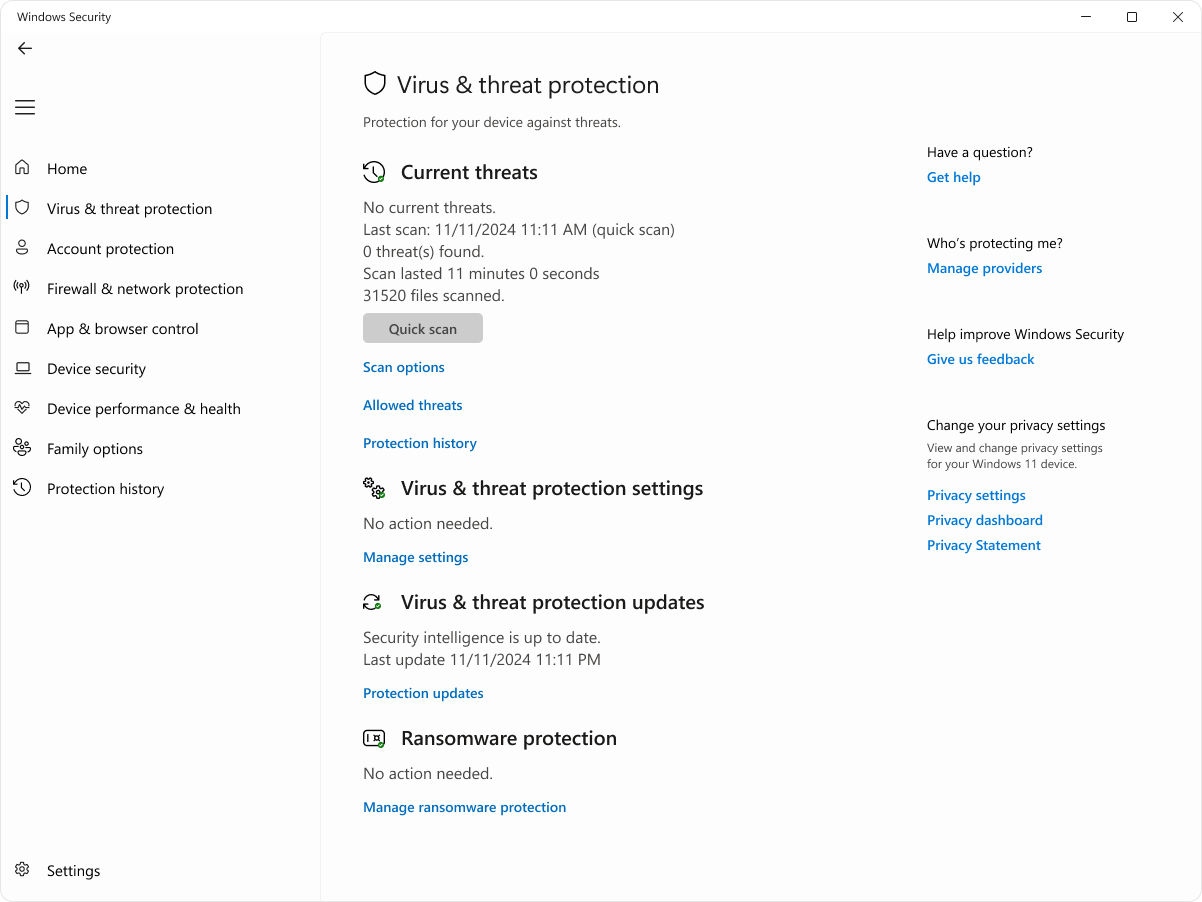
While this is not necessarily a problem, we recommend that if something is still not working after following this guide, you try uninstalling the antivirus temporarily to test if it is causing the issue.

If this is your case, you are required to complete Step #3 below in this guide.
Here, you need to click on “Manage Settings” (the blue text) below “Virus & Threat Protection Settings.”
Once you do that, you should see something similar to this:
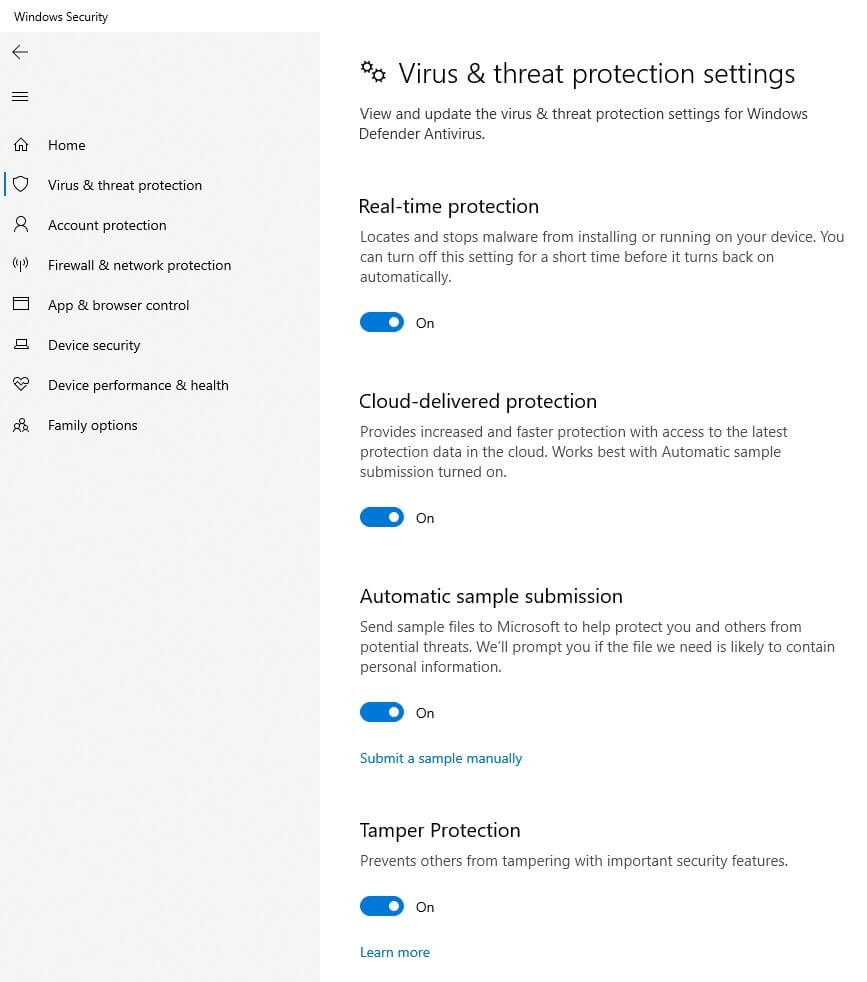
Make sure you TURN OFF EVERYTHING.
For normal mods, the most common issue is Real-Time Protection, as it may prevent the mod from being injected properly.
This will show something like this:

Click on the option with the flag icon.
Once it opens, you will see a level slider. In this case, you need to move it to the lowest level and then click “OK.”


Click “Pause Protection”, and then select Until Next Restart and Apply:

If you have a antivirus, and something is failing we recommend to unistall it and then retry this guide, and check if your problem persist
On the same Windows Security found App & Browser Control FINDED IT ON THE LEFT NAVIGATION AND CLICK ON IT.

This should look like this, some computers will have the 4 options, others only 2 others only 3 we cover on this guide the 4 if you missing one don't worry.

On this we gonna work on Smart App Control Settings, also on Reputation-base protection and on Exploit Protection Settings.
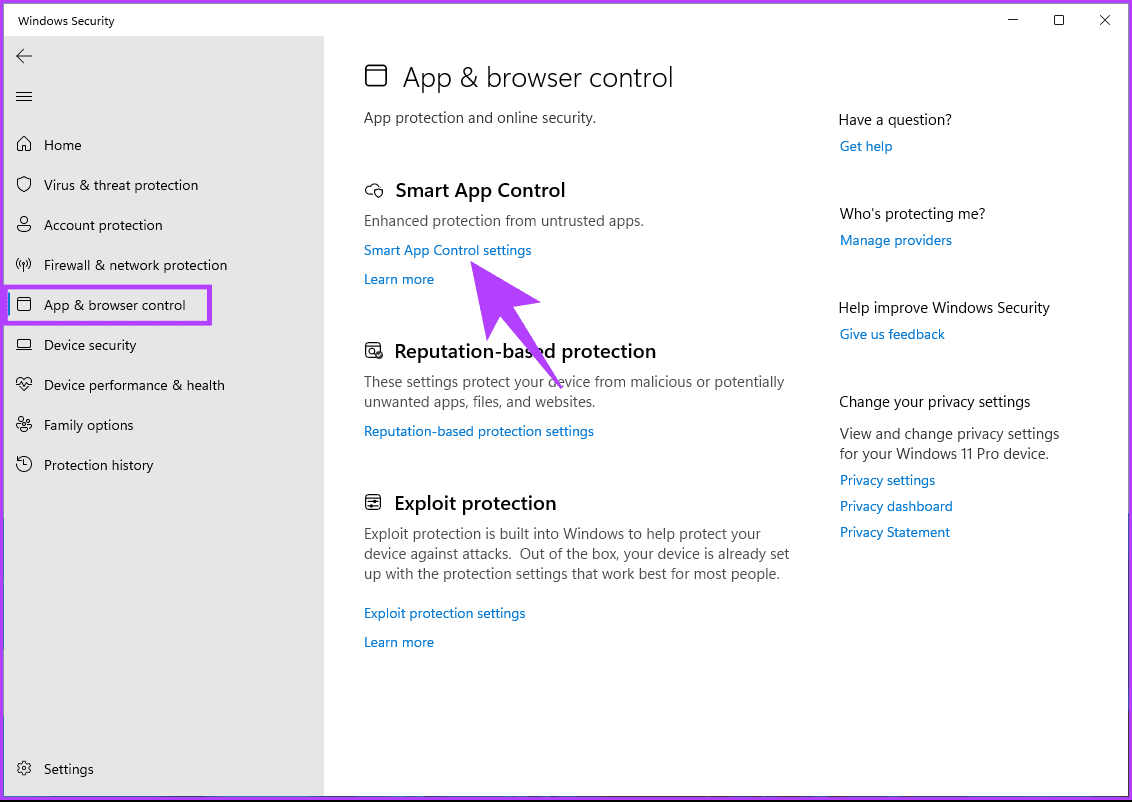
You will see the next picture, be sure to put it on “Off”
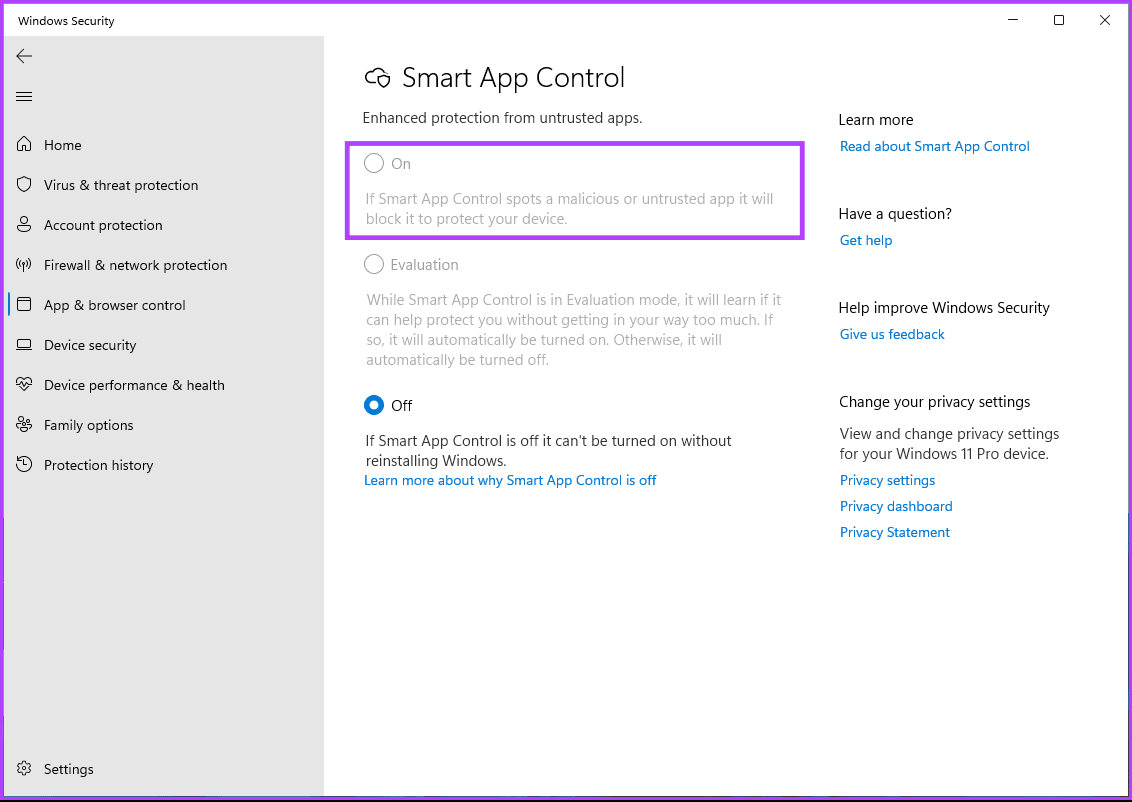
On this one click on the Blue text that say reputation-base protection settings as the picture show:
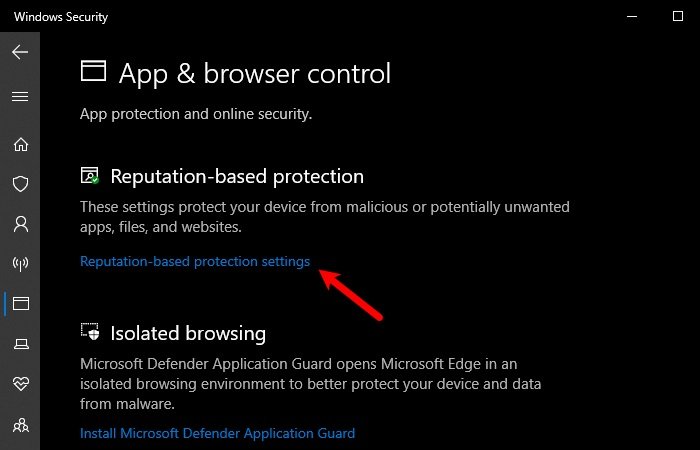
Then you will see all as the nextimage, more or less.

In that section, TURN OFF EVERYTHING.
In the picture, there are only 3 options, but in some Windows versions there may be more than 3. The important point is that all of them must be turned off.
This one is important — you must TURN OFF EVERYTHING.
To do this, find the blue text:
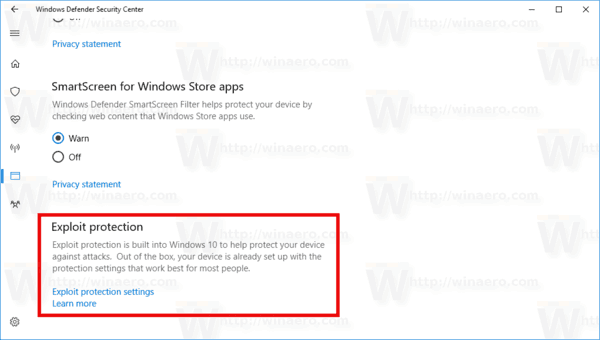
Once you click there, you will see something like the next image.
Make sure you are in “System Settings”, and set everything to “Off by Default.”

And with this you have completed the App & browser control section, you can move to the next Step!
Win10/Win11 Protection.
This section should fix some red errors that may appear while installing the bypass from the Fikit Loader.
First download both files: File
Fixing it is very simple — just download the next two files and execute both as shown here:
Double-click the file.

Click on Execute/Open or Run

Then click (Yes/OK/Continue)

To finish click on “Accept/Aceptar/Ok”:

Now you just need to perform a PC reboot.
Restart your computer and then try using our loader again to install the bypass or load a mod.
Was this article helpful?